
Server Guides
Buy for what you use, not what you hope for
Most people buy too much CPU and too little RAM. It is an easy mistake, because CPU is the number every provider puts in the largest font, and RAM is the one that actually kills sites.
This guide walks through each spec on an offshore VPS, what it really controls, and the commands that tell you what you are using now rather than what you imagine you need.
Measure what you use now
If you already have a server, this takes thirty seconds and beats any amount of guessing:
nproc
free -h
df -h
lsblk -d -o NAME,SIZE,ROTA,MODEL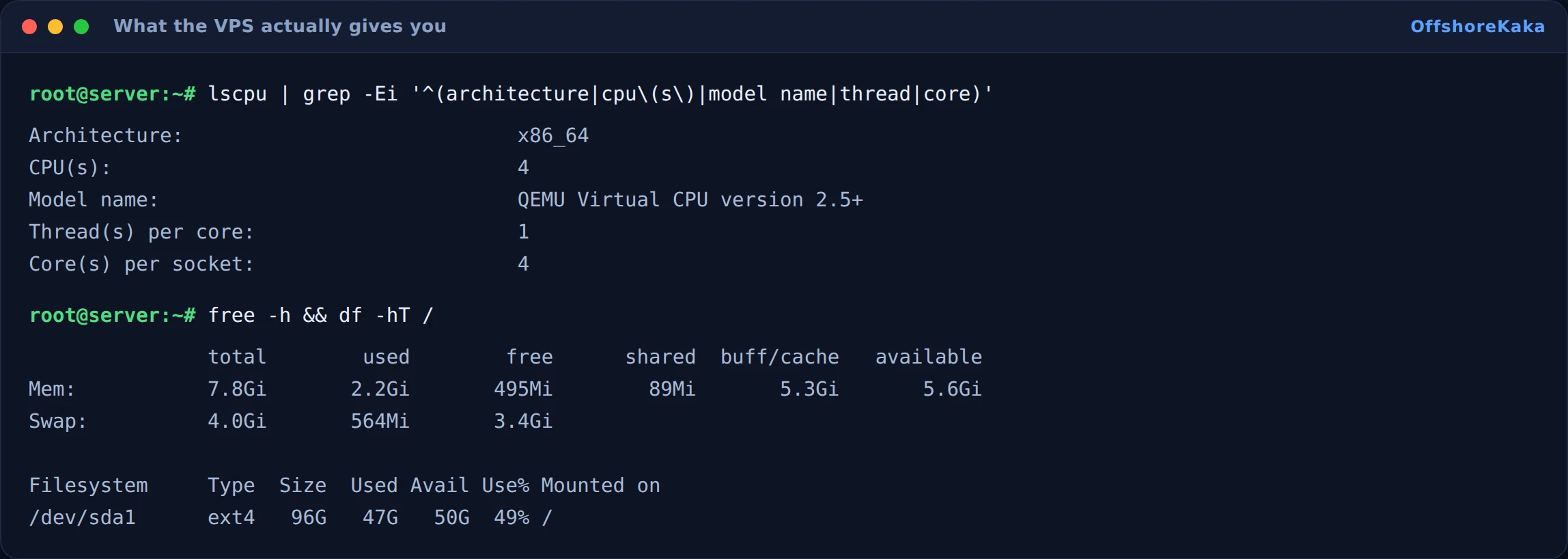
Run it during your busiest hour, not at midnight. A server that looks half empty on a Sunday morning tells you nothing about Monday at 10am.
RAM
Memory is where sites actually die, and the failure is ugly. When RAM runs out, Linux starts swapping to disk, which is orders of magnitude slower, and then the kernel starts killing processes. Usually it kills MySQL, because MySQL is the biggest thing in memory. The site then throws database connection errors that look like a database problem but are a memory problem.
Rough figures for a LAMP or LEMP stack:
- 1GB works for one small WordPress site with caching on. It is tight. MySQL alone wants 200 to 300MB before it does anything useful.
- 2GB is the honest starting point for a real site. Room for MySQL, a few PHP workers, and a burst of traffic.
- 4GB handles several sites, or one busy one, or WooCommerce, which uses far more memory per request than a blog.
- 8GB and up when you are running Redis, Elasticsearch, or a control panel with its own services.
Read the available column from free -h, not free. Available counts cache the kernel can reclaim on demand, so it is the number that tells you whether you have headroom. If available is consistently under about 15 percent of total and swap is in use, you need more RAM.
CPU
Cores control how many things happen at once, not how fast one thing happens. A single page load is mostly one core doing work in sequence, so going from 2 cores to 8 does nothing at all for a single visitor. What it changes is how many visitors you serve simultaneously before they queue.
- 1 core is enough for a low traffic site with caching. Cached pages barely touch the CPU.
- 2 cores is the sensible default. One can be busy without everything else stalling.
- 4 cores for a busy site, a shop, or anything doing real work like image processing or video.
- More than 4 only if you have measured sustained high load, not because it sounds better.
Check whether you are actually CPU bound before paying for more. Run uptime and compare load average to core count. Load of 1.5 on a 2 core box is fine. Load of 8 on a 2 core box is a problem. And look at the wa figure in top: if that is high while CPU is idle, your bottleneck is the disk, and more cores will change nothing.
Storage
Disk type matters more than disk size for most sites. NVMe against a spinning disk is not a small difference, it is roughly a hundred times faster on the random reads a database does constantly.

On size, add up what you actually store: the site files, the database, and then double it. The doubling is for backups, temporary files during updates, and logs. A WordPress site with 5GB of media needs a 20GB disk, not a 10GB one, or the first backup fills it.
Watch the disk more closely than anything else. A full disk takes the site down in a way that is genuinely confusing to debug, because MySQL stops accepting writes and every error points somewhere else. Our monitoring guide covers alerting on it.
Bandwidth
Two different numbers get called bandwidth and they are not the same thing.
Transfer is how many terabytes you can move per month. Most sites never come close. A page averaging 2MB with 100,000 monthly visits is about 200GB, and typical plans include far more than that.
Port speed is how fast a single transfer can go. 1Gbps versus 100Mbps decides how quickly a large file downloads and how well you cope with a traffic spike. For streaming or large downloads this matters far more than the monthly allowance.
Where people get caught is the word unmetered, which usually means unlimited transfer at a capped port speed. We wrote about how to read those claims in unmetered bandwidth explained.
Quick sizing table
| What you are running | RAM | Cores | Disk |
|---|---|---|---|
| One small WordPress blog, cached | 1 to 2GB | 1 | 20GB NVMe |
| Business site with forms and email | 2GB | 2 | 40GB NVMe |
| WooCommerce shop, moderate traffic | 4GB | 2 to 4 | 60GB NVMe |
| Several client sites on one box | 4 to 8GB | 4 | 100GB NVMe |
| App with Redis or a search engine | 8GB and up | 4 | 100GB and up |
How to confirm you sized it right
- A week after launch, run
free -hat your busiest hour. Available should be above 20 percent. - Run
uptime. Load should sit below your core count most of the time. - Run
df -h. Disk should be under 70 percent with backups included. - Check
topfor wa. Anything consistently above a few percent means disk pressure. - Check swap usage. Regular swapping means you are short on RAM.
When something breaks
| What you see | Why | Fix |
|---|---|---|
| Database connection errors under load | MySQL killed by the out of memory killer | More RAM, or tune MySQL buffers down |
| Site fine alone, slow with visitors | Not enough PHP workers or cores | Turn on page caching first, then add cores |
| Everything slow, CPU idle | Disk bound. Check wa in top | Move to NVMe, or find the query doing the reads |
| Random failures, disk under 100 percent | Out of inodes rather than space | df -i to confirm, then clear millions of small cache files |
| Backups fail overnight | Disk fills during the backup | Size for double your data, and add retention |
Checklist
- Current usage measured at a busy hour, not at random.
- RAM sized with headroom, since this is what fails hardest.
- Cores matched to concurrency, not to marketing.
- NVMe confirmed with ROTA 0.
- Disk sized at roughly double your data.
- Port speed checked, not just monthly transfer.
- Monitoring in place so you find out before your visitors do.
Not sure what size you need?
OffshoreKaka VPS plans run on AMD EPYC with NVMe storage in Amsterdam and Frankfurt, and you can move up a plan without rebuilding.
FAQ
Start small or start big?
Start small, but only if resizing is easy with your provider. Check that before you buy. A plan you can grow into next month beats paying for headroom you may never use. What you should not skimp on is RAM, because running out of it is the failure that takes the site down rather than just slowing it.
How do I tell which spec I am short on?
Load average above core count means CPU. Available memory near zero with swap in use means RAM. High wa in top with idle CPU means disk. Disk above 85 percent means space. One command each, and they rarely disagree.
Does a bigger VPS help my search ranking?
Only through speed, and only if the server was the bottleneck in the first place. On most slow sites it is not. Caching and front end weight matter far more. Our TTFB guide shows how to find out which one you have.
Is shared hosting enough instead?
For a blog or a brochure site with caching, very often yes, and it costs a fraction as much. You want a VPS when you need root access, a custom stack, isolated resources, or you have simply outgrown the limits. There is a fuller comparison in VPS versus shared hosting.