
Tutorial
The mailbox is the easy part
Creating [email protected] takes about thirty seconds in any hosting panel. Getting that mail to land in someone’s inbox rather than their spam folder is the actual job, and it comes down to three DNS records.
Without SPF, DKIM and DMARC, Gmail and Outlook treat your mail as unverified, and unverified mail from a new IP goes to spam. This guide covers setting the mailbox up on offshore hosting and then getting those records right.
Where should mail live?
Worth deciding before you start, because moving later means changing MX records and migrating mailboxes.
On your hosting is free, included, and fine for a few addresses that mostly receive. The catch is that your server’s IP has no sending reputation, and a shared IP inherits whatever reputation the other sites on it have earned.
With a mail provider like Zoho, Google Workspace or Microsoft 365 costs a little but gives you IPs that are already trusted, better spam filtering, and mail that keeps working when the web server is being rebuilt.
There is also a privacy angle. If you use Cloudflare to hide your origin IP, a mail record pointing straight at the same server gives it away, since MX records cannot be proxied. Mail elsewhere closes that gap. Our Cloudflare guide covers the proxying side.
Create the mailbox
In cPanel, go to Email Accounts, click Create, choose the address and set a password. In aaPanel the Mail Server plugin does the same thing.
Use a real password, not a memorable one. A compromised mailbox on your own domain gets used to send spam within hours, and then your domain is the one on the blocklist.
The three records
MX says which server receives mail for your domain:
Type: MX Host: @ Value: mail.yourdomain.com Priority: 10The priority number is which server to try first, lowest wins. Multiple MX records are for failover, not for load balancing.
SPF lists who is allowed to send as you:
Type: TXT Host: @ Value: v=spf1 a mx ~allTwo rules that catch people out. You may only have one SPF record per domain, so if you use both your host and a newsletter service, combine them into one line rather than adding a second record. And end with ~all or -all, never +all, which tells the world anyone may send as you and defeats the whole point.
DKIM signs each message cryptographically. Your panel generates the key, usually in the Email Deliverability section in cPanel. Copy the whole value, which is long, and paste it as a TXT record on the selector host the panel gives you, typically default._domainkey.
Then add DMARC, which tells receivers what to do when SPF or DKIM fail, and asks them to report back:
Type: TXT Host: _dmarc Value: v=DMARC1; p=none; rua=mailto:[email protected]Start with p=none, which changes nothing and just collects reports. Move to p=quarantine once the reports show your legitimate mail is passing. Going straight to p=reject is how people accidentally block their own invoices.
Verifying them
dig +short MX yourdomain.com
dig +short TXT yourdomain.com
dig +short TXT default._domainkey.yourdomain.com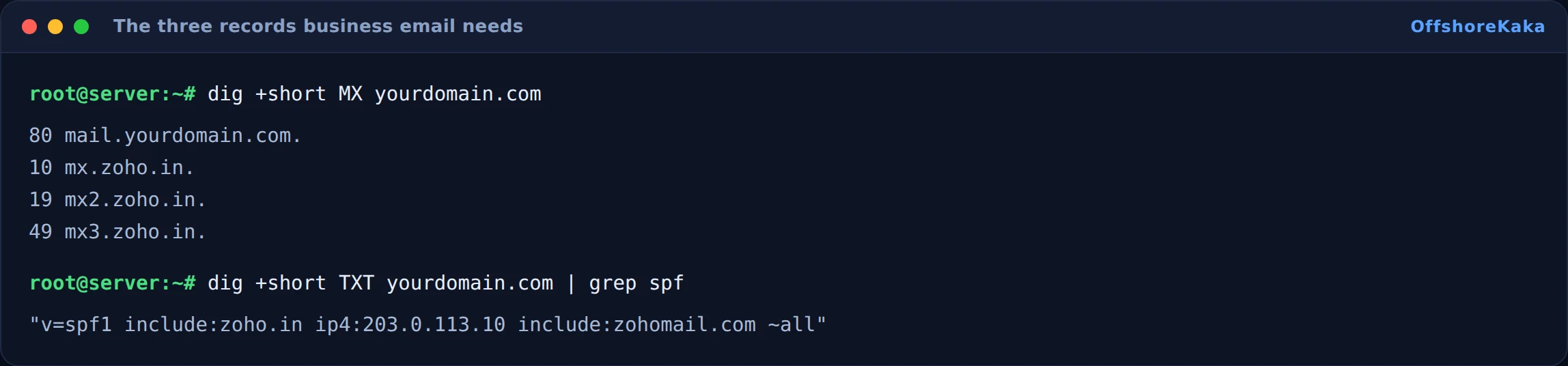
Read the SPF output carefully. If two lines starting with v=spf1 come back, that is a broken configuration and receivers will treat SPF as failing entirely.
The most reliable end to end test is to send a message to a Gmail address you own, open it, and use Show Original. That page shows PASS or FAIL for SPF, DKIM and DMARC on the actual message, which is worth more than any checker.
Connecting your mail app
Use IMAP, not POP3. IMAP keeps mail on the server so your phone and laptop stay in sync; POP3 downloads and usually deletes, which is why mail read on a laptop vanishes from a phone.
- IMAP:
mail.yourdomain.com, port 993, SSL/TLS. - SMTP:
mail.yourdomain.com, port 587, STARTTLS. - Username: the full address, not just the part before the at sign.
If port 587 is blocked, try 465 with SSL. Some networks and some VPS providers block outbound 25 entirely to limit spam, which is normal and is not a problem as long as you use 587 or 465.
If mail goes to spam
Work through these in order. It is almost always one of the first three.
- SPF, DKIM or DMARC failing. Check Show Original in Gmail. Fix whichever says fail.
- No reverse DNS on the sending IP. Set the PTR record in your provider panel to match your mail hostname. Many receivers reject mail from IPs with no reverse DNS outright.
- The IP is on a blocklist. Check it at mxtoolbox. A fresh IP can inherit a bad history from a previous tenant.
- No sending history. A brand new domain sending to a hundred people at once looks exactly like spam. Build up gradually.
- Content triggers. All caps subjects, a single large image with no text, or lots of links.
If you are sending anything in volume, newsletters or transactional mail, use a dedicated sending service. Their IPs have reputation that yours never will.
One more thing worth checking if mail broke right after a server move: MX records cache exactly like every other DNS record, so mail can keep going to the old server for hours after the website has already switched. Our DNS propagation guide covers why, and how to shorten it.
How to test
- Send from the new address to a Gmail account and read Show Original.
- Confirm SPF, DKIM and DMARC all say pass.
- Reply from Gmail and confirm it arrives.
- Check the same mailbox on a phone and a laptop to confirm IMAP sync.
- Run the domain through mxtoolbox for blocklist and record checks.
- Confirm only one SPF record exists.
When something breaks
| What you see | Why | Fix |
|---|---|---|
| Mail sends but never arrives | Blocked at the receiver, often silently | Check Show Original, then check blocklists |
| Incoming mail bounces | MX record missing or pointing at the old host | Set the MX record and wait for the TTL |
| Everything lands in spam | SPF or DKIM failing, or no reverse DNS | Fix the records, set the PTR record |
| SPF fails despite a correct looking record | Two SPF records on the domain | Merge them into one line |
| Cannot send from the mail app | Port 25 blocked by the network | Use 587 with STARTTLS, or 465 with SSL |
| Mail read on the phone still unread on the laptop | Account set up as POP3 | Remove it and add it again as IMAP |
| Mail stopped after moving to Cloudflare | Orange cloud on the mail record | Set the mail record to grey. Cloudflare cannot proxy SMTP |
Checklist
- Decided where mail lives before setting anything up.
- Mailbox created with a strong password.
- MX record set with a sensible priority.
- Exactly one SPF record, ending in
~allor-all. - DKIM key generated and published on the right selector.
- DMARC added, starting at
p=none. - Reverse DNS set on the sending IP.
- All three verified by Show Original on a real message.
- Mail app using IMAP on 993 and SMTP on 587.
Need hosting with email included?
OffshoreKaka hosting plans come with mailboxes, webmail and DKIM signing built into the panel, on privacy friendly servers in the Netherlands and Germany.
FAQ
Hosting email or a paid provider?
Hosting email is free and fine for a few addresses that mostly receive. A paid provider is worth it once mail matters to the business, because you get trusted sending IPs, better filtering, and mail that survives the web server being down. Most people start with hosting email and move once something important lands in spam.
Do I really need DKIM if I have SPF?
Yes. SPF checks the sending IP, which breaks the moment a message is forwarded. DKIM signs the message itself and survives forwarding. Gmail and Outlook both want to see them together, and DMARC requires at least one of them to pass and align.
Does business email help my SEO?
No, not directly. It has nothing to do with how pages rank. What it affects is whether people trust you enough to contact you, which is a different and arguably more useful thing.
Why does mail keep going to spam even after the records are right?
Usually reputation rather than configuration. A new IP and a new domain have no history, and filters are cautious by default. Send steadily to people who actually want your mail, avoid sudden large batches, and it improves over a few weeks.