
Installation Guides
WordPress on a bare VPS
A fresh offshore VPS has nothing on it. No web server, no database, no PHP. Installing WordPress means building that stack first, then dropping WordPress on top of it.
It is about twenty minutes of work. The parts people get wrong are file ownership and the PHP extensions, and both produce errors that look like something else entirely.
Before you install anything
Harden the server first. It takes twenty minutes and the IP is already being scanned. Non-root user, firewall, key-only SSH, fail2ban. Our VPS security checklist is the short version.
Point DNS at the server too, since you will want a certificate at the end and that needs the domain resolving here.
The stack
apt update
apt install nginx mariadb-server php-fpm php-mysql php-curl php-gd php-xml php-mbstring php-zip php-intl unzip -y
Those PHP extensions are not optional padding. Leave out php-gd and image resizing silently stops working, so thumbnails never generate. Leave out php-curl and WordPress cannot reach the update servers, so the dashboard sits there saying it cannot check for updates and never explains why. Leave out php-mbstring and anything non-English breaks.
Secure MySQL before going further:
mysql_secure_installationThis sets a root password, removes the anonymous accounts and drops the test database. All three exist by default on a fresh install.
The database
mysql -u root -pCREATE DATABASE wordpress CHARACTER SET utf8mb4 COLLATE utf8mb4_unicode_ci;
CREATE USER 'wpuser'@'localhost' IDENTIFIED BY 'a-long-random-password';
GRANT ALL PRIVILEGES ON wordpress.* TO 'wpuser'@'localhost';
FLUSH PRIVILEGES;
EXIT;Use utf8mb4, not utf8. MySQL’s utf8 is a three byte subset that cannot store emoji or a lot of non-Latin text, and you find out when a post silently truncates at the first emoji.
Grant on wordpress.* only, and use 'localhost' rather than '%'. A database user that can connect from anywhere on the internet is a mistake you make once.
WordPress itself
cd /var/www
wget https://wordpress.org/latest.tar.gz
tar xzf latest.tar.gz
mv wordpress yourdomain.com
rm latest.tar.gz
Now ownership, which is where most installs go wrong:
chown -R www-data:www-data /var/www/yourdomain.com
find /var/www/yourdomain.com -type d -exec chmod 755 {} ;
find /var/www/yourdomain.com -type f -exec chmod 644 {} ;
The user is www-data on Ubuntu and Debian, nginx or apache on the RHEL family. Get it wrong and WordPress cannot write, so uploads fail and plugin installs ask for FTP credentials. That FTP prompt is almost always an ownership problem, not an FTP one.
The vhost
Create /etc/nginx/sites-available/yourdomain.com:
server {
    listen 80;
    server_name yourdomain.com www.yourdomain.com;
    root /var/www/yourdomain.com;
    index index.php index.html;

    location / { try_files $uri $uri/ /index.php?$args; }

    location ~ .php$ {
        include snippets/fastcgi-php.conf;
        fastcgi_pass unix:/run/php/php8.3-fpm.sock;
    }

    location ~* /wp-content/uploads/.*.php$ { deny all; }
}
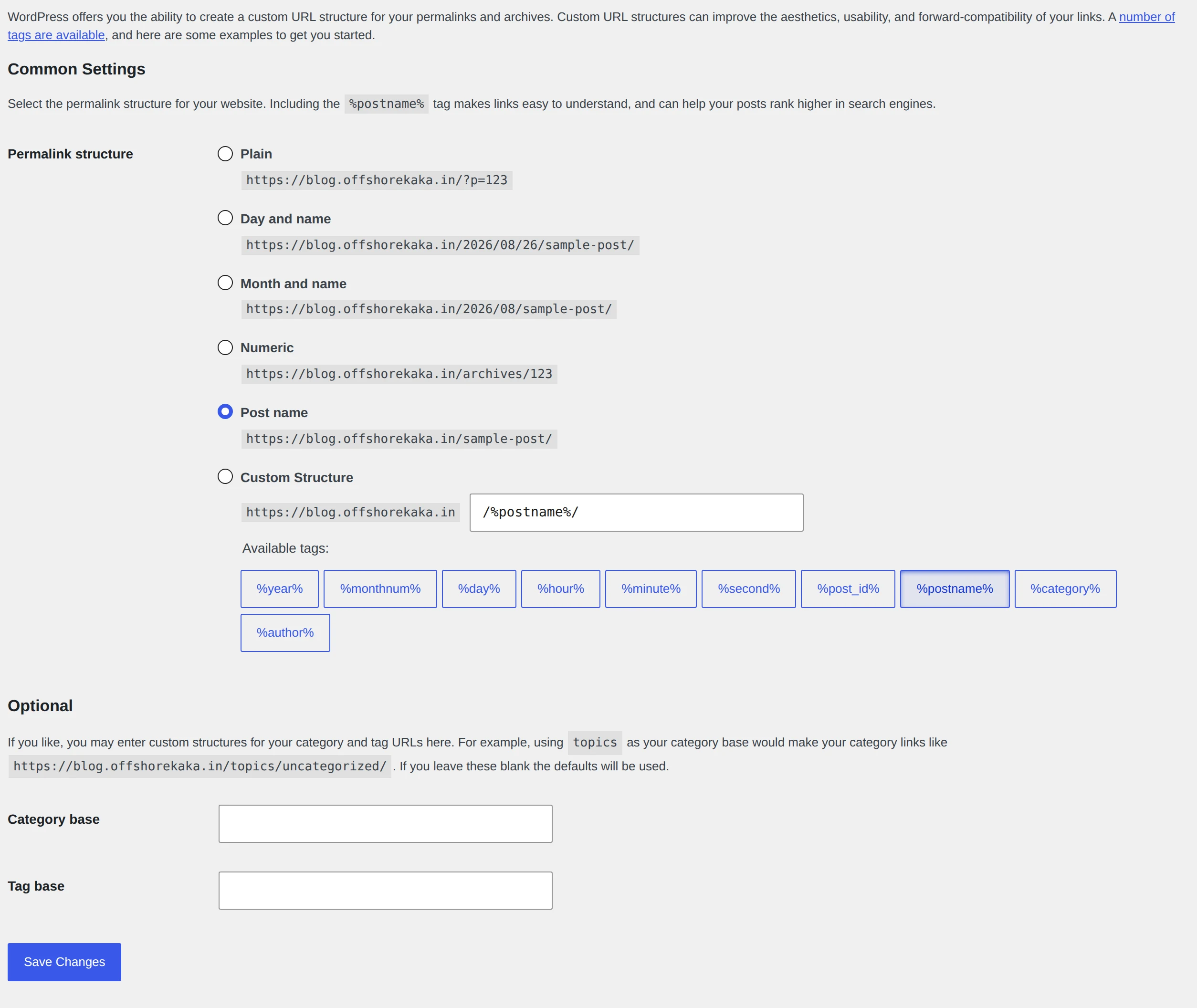
The try_files line is what makes pretty permalinks work. Without it every URL except the homepage returns 404, and people spend an hour in the permalinks settings page looking for the problem.
That last block stops PHP executing inside uploads. It costs nothing and it neutralises the most common backdoor, as covered in our malware guide.
ln -s /etc/nginx/sites-available/yourdomain.com /etc/nginx/sites-enabled/
nginx -t && systemctl reload nginx
Always nginx -t before reloading. A syntax error caught here is a non-event; the same error found after a reload takes the site down.
SSL and finishing up
apt install certbot python3-certbot-nginx -y
certbot --nginx -d yourdomain.com -d www.yourdomain.com
Then open the site in a browser and run the WordPress installer. It asks for the database name, user and password you created above.
Two things to do straight after:
- Move WP cron to a real cron job. By default WordPress fires scheduled tasks on page loads, which makes random requests slow. Set
define('DISABLE_WP_CRON', true);inwp-config.phpand add*/5 * * * * curl -s https://yourdomain.com/wp-cron.php >/dev/nullto crontab. - Turn on caching. The single biggest speed difference. See our TTFB guide.
How to test
- Homepage loads over HTTPS.
- An inner post loads, which proves permalinks work.
- Upload an image in the dashboard. Success means ownership is right.
- Install a plugin. If it asks for FTP details, fix ownership.
systemctl status nginx php8.3-fpm mariadball active.- Reboot and confirm everything comes back.
When something breaks
| What you see | Why | Fix |
|---|---|---|
| Homepage works, inner pages 404 | try_files missing from the vhost |
Add it and reload nginx |
| WordPress asks for FTP credentials | Files not owned by the web server user | chown -R www-data:www-data |
| Browser downloads the PHP file instead of running it | PHP-FPM not wired into the vhost | Check the fastcgi_pass socket path matches your PHP version |
| Error establishing a database connection | Wrong credentials, or MySQL not running | Check wp-config.php, then systemctl status mariadb |
| Thumbnails never generate | php-gd not installed |
Install it and restart PHP-FPM |
| White screen, no error | PHP fatal error with display off | tail -f /var/log/nginx/error.log while loading the page |
Checklist
- Server hardened before WordPress went on it.
- All PHP extensions installed, not just php-mysql.
mysql_secure_installationrun.- Database created as utf8mb4 with a localhost-only user.
- Ownership and permissions set correctly.
- vhost has
try_filesand blocks PHP in uploads. - Certificate issued and HTTP redirecting.
- WP cron moved to system cron.
- Caching on.
Want WordPress without building the stack?
OffshoreKaka shared hosting comes with LiteSpeed, cPanel and one click WordPress, so this whole page becomes a single button.
FAQ
Should I use a control panel instead?
If you are going to run more than one or two sites, yes. aaPanel is free and takes ten minutes, and it handles vhosts, certificates and backups for you. A plain stack is leaner and better if this is one application you know well.
nginx or Apache?
nginx uses less memory under load, which matters on a small VPS. Apache reads .htaccess, which many WordPress plugins expect and which makes some things easier. LiteSpeed gives you Apache compatibility with better performance, and our LiteSpeed guide covers installing it.
How much RAM does this need?
2GB is a comfortable starting point for one site. 1GB works with caching on and nothing else running, but MySQL alone wants a few hundred megabytes before it is useful. There is more detail in choosing VPS specs.
Will installing it myself help my ranking?
No. Google cannot tell how the server was built. What it can tell is whether pages load quickly and stay available, and those come from caching and maintenance rather than from the install method.