
Server Security
How you find out you have a problem
Almost nobody discovers a WordPress infection by scanning for it. They find out because Google flags the site, because a customer says the pages redirect to a betting site on mobile, or because the host suspends the account for sending spam. By then the malware has usually been sitting there for weeks.
This guide covers finding it on an offshore hosting account, cleaning it properly, and closing the hole it came in through. That last part is the one people skip, which is why the same site gets reinfected three days later.
Signs worth checking
- Pages redirect somewhere else, but only on mobile, or only for visitors arriving from Google.
- Google Search Console shows pages you never wrote, often in Japanese or about pharmacy products.
- New admin users you did not create.
- The server is sending mail you know nothing about.
- Files in
wp-content/uploadswith a.phpextension.
That last one is the strongest single signal. The uploads folder is for media. A PHP file living in it is a backdoor roughly nine times out of ten.
Back up before you touch anything
Take a full copy of the site and database before you delete a single file, even though it is infected. Two reasons. If you delete something that turns out to be a real plugin file, you need it back. And if you ever want to work out how they got in, the evidence is in those files.
tar czf /root/infected-$(date +%F).tgz /var/www/yourdomain.com
mysqldump -u dbuser -p dbname > /root/infected-$(date +%F).sql
Store it off the server. Our backup guide covers doing this properly on a schedule.
Scanning the files
ClamAV is free, it runs on any Linux box, and it catches the common web shells. Install it and update the signature database first, because the packaged database is usually months old.
apt install clamav -y
freshclam
clamscan -ri --exclude-dir='^/proc' /var/www/yourdomain.com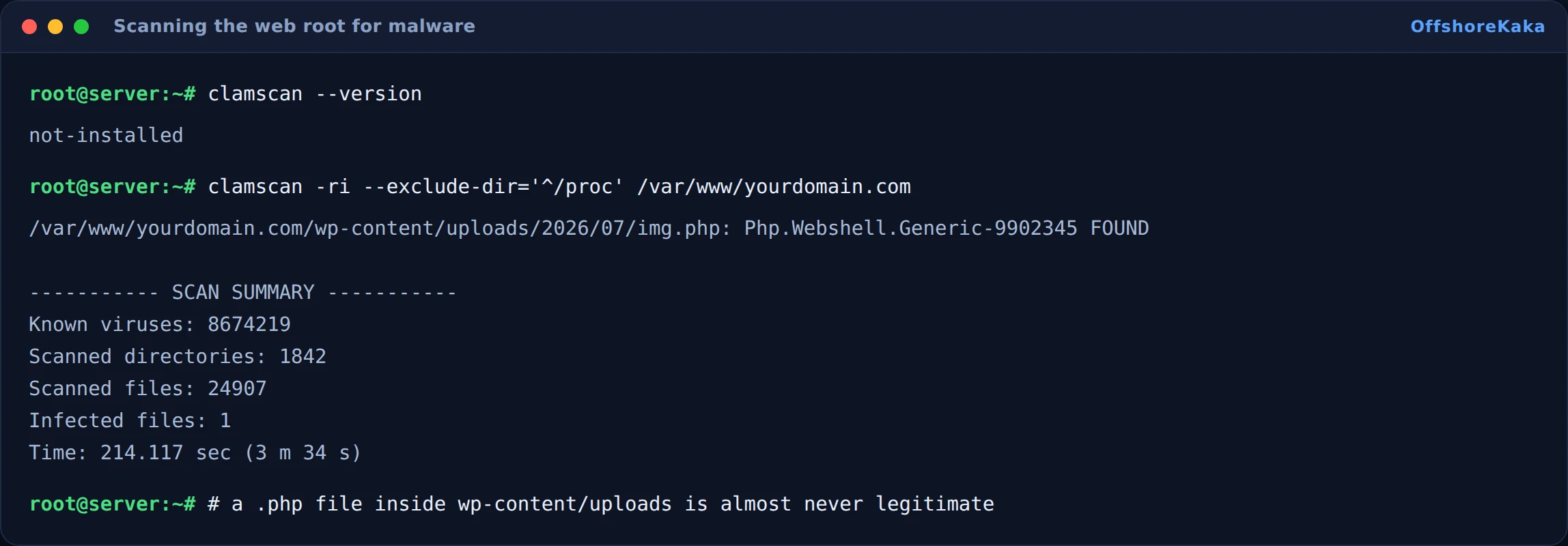
Be realistic about what ClamAV gives you. It is signature based, so it catches known families and misses anything freshly obfuscated. A clean scan is good news, not proof. Treat it as one input, not a verdict.
Finding it by hand
The manual checks catch things the scanner does not, and they take about a minute.
find public_html/wp-content/uploads -name '*.php' -o -name '*.phtml'
find public_html -type f -name '*.php' -mtime -3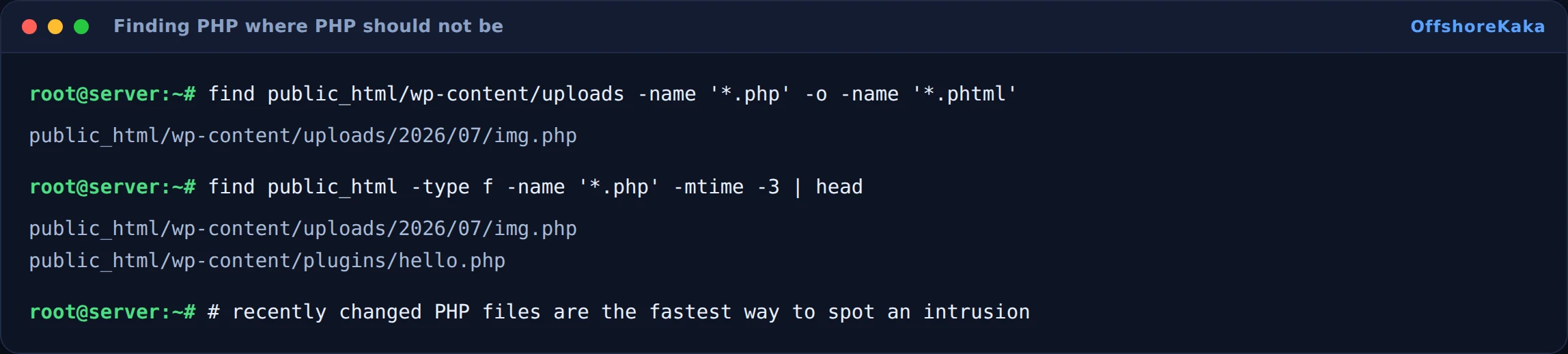
The second command lists PHP files changed in the last three days. On a site you have not touched, that list should be empty or close to it. Anything on it deserves a look.
A few more patterns worth grepping for. None of these are proof on their own, since legitimate code occasionally uses them, but together with a recent modification date they are a strong hint:
grep -rl "eval(base64_decode" public_html
grep -rl "gzinflate(base64_decode" public_html
grep -rl "$_POST['pass']" public_html
Also check wp-config.php and .htaccess. Injections love both, and people rarely open them. In .htaccess, look for redirect rules keyed on the user agent or the referrer, which is how a site redirects Google visitors and mobile users while looking normal to you.
Cleaning up
Replacing is safer than editing. WordPress core, plugins and themes are all downloadable, so do not try to surgically remove injected lines from them.
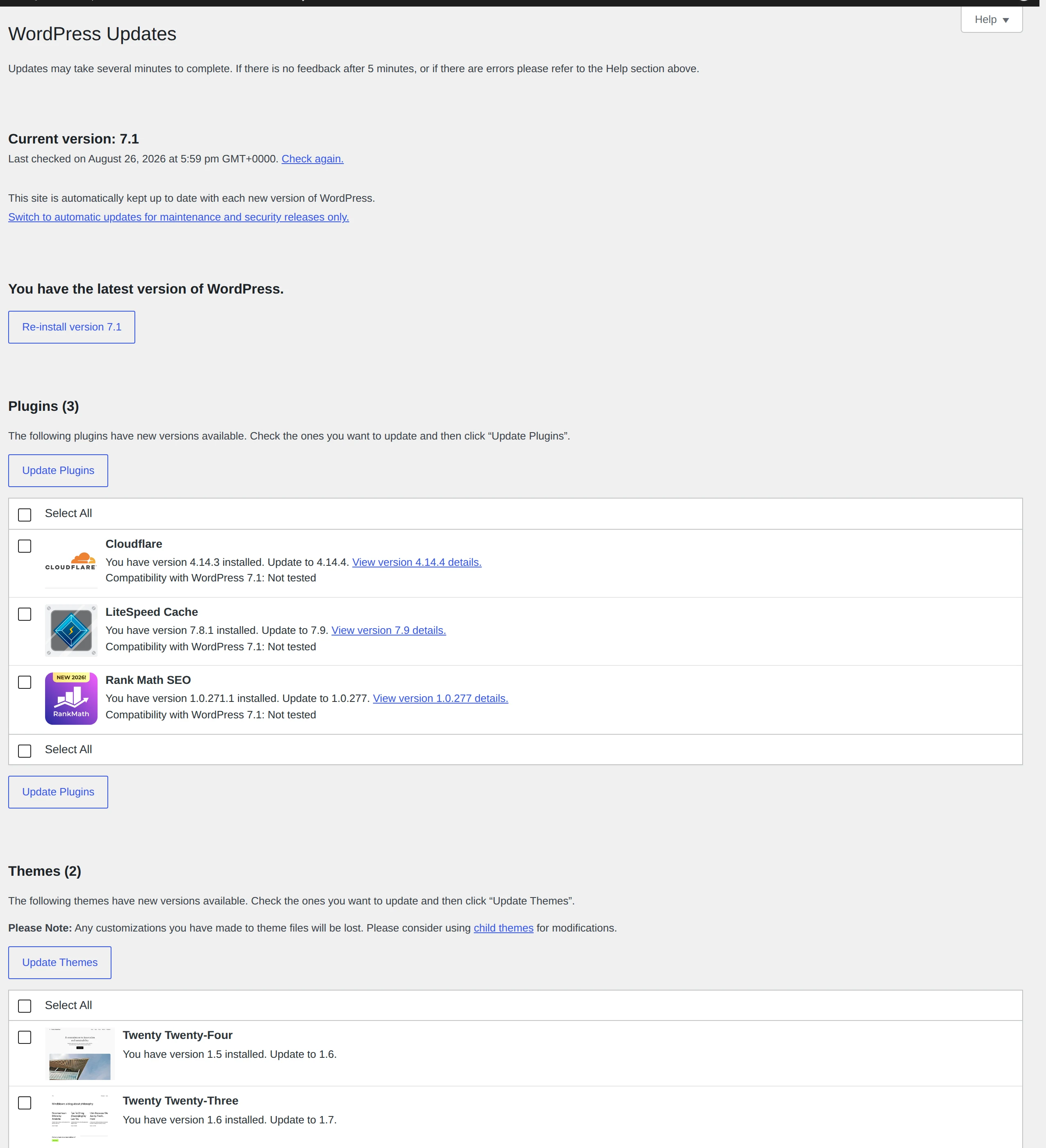
- Reinstall core. In the dashboard, Updates then Reinstall Now. Or over SSH,
wp core download --force. - Reinstall every plugin and theme from the repository. Delete anything you do not actively use rather than leaving it deactivated, because a deactivated plugin with a vulnerability is still a file on the disk that can be reached directly.
- Delete the files that do not belong, starting with the PHP files in uploads.
- Check the database. Look in
wp_usersfor admin accounts you did not create, and inwp_optionsatsiteurlandhometo make sure they still point at your own domain. - Rotate every credential. All admin passwords, the database password in
wp-config.php, FTP and SSH keys, and the WordPress salts. Generate new salts and paste them intowp-config.php. That logs out everyone, including whoever else was logged in.
Closing the hole
If you clean the site and change nothing else, expect it back within the week. The way in is nearly always one of these:
- An outdated plugin. By far the most common. Check the plugin against the WPScan vulnerability database before you reinstall it. If it has been abandoned by its author, replace it rather than updating it.
- A weak or reused admin password. Fixed by the rotation above, plus two factor authentication.
- Loose file permissions. Directories should be 755, files 644, and
wp-config.phptighter still. - The server itself was never hardened. If the attacker came in over SSH rather than through WordPress, cleaning the site changes nothing. Our VPS security checklist covers that side.

One more worthwhile step: stop PHP from running inside the uploads folder at all. Then even if a backdoor is uploaded again, it cannot execute. On nginx:
location ~* /wp-content/uploads/.*.php$ { deny all; }
How to check the clean worked
- Rescan with ClamAV and confirm zero infected files.
- Run the uploads and recently modified searches again.
- Open the site in a private window on a phone, and again with a Google referrer, since that is when the redirect usually fires.
- Check the admin user list for accounts you do not recognise.
- In Search Console, request a review under Security Issues if the site was flagged.
- Come back in three days and run the recently modified search once more.
When something breaks
| What you see | Why | Fix |
|---|---|---|
| Site is blank after cleaning | A file the theme needed got deleted | Reinstall the theme, then restore just that file from the backup |
| Redirect only happens on mobile | Injected rule in .htaccess or a mu-plugin |
Check .htaccess and wp-content/mu-plugins |
| Infection comes back within days | The way in was never closed | Update or remove the vulnerable plugin, rotate all credentials, block PHP in uploads |
| ClamAV finds nothing but the site clearly misbehaves | Obfuscated code with no signature, or an injection in the database | Use the manual searches, and check wp_options and wp_posts |
| clamscan is killed partway through | Not enough memory on a small VPS | Scan one directory at a time, or add swap |
Checklist
- Full backup of files and database taken before touching anything.
- ClamAV database updated, then a full scan run.
- Uploads folder searched for PHP files.
- Recently modified PHP files reviewed.
wp-config.phpand.htaccessread line by line.- Core, plugins and themes reinstalled rather than patched.
- Every password, key and salt rotated.
- The original way in identified and closed.
- Re-checked three days later.
Moving off a compromised host?
OffshoreKaka runs Imunify on our shared platform and gives you full root on VPS plans, so you can scan whenever you want rather than waiting for a support reply.
FAQ
Is a security plugin enough on its own?
Wordfence and similar plugins are useful and worth running, but they are PHP running inside the site they are trying to protect. If the attacker got there first, they can hide from it. A scan from outside WordPress, at the file level, sees things the plugin cannot.
Should I just restore from a backup instead?
Only if you are certain the backup predates the infection, and most people are not, because the malware sat quietly for weeks first. Restoring a backup that already contains the backdoor puts you straight back where you started. Either way you still have to close the hole.
Does getting hacked hurt my rankings?
Yes, and this is one of the few security things that genuinely does. If Google flags the site as compromised, the listing gets a warning label and traffic drops immediately. Recovery takes a review request and then time. Preventing it is much cheaper than fixing it.
What should I send support if I am stuck?
The domain, the exact path of the files you found, the scan output, when you first noticed something wrong, and what you have already changed. Do not send passwords.