
Server Security
What this guide does
By the end of it you will log in to your offshore VPS with a key file instead of a password, and password logins and direct root logins will be switched off. Bots that spend all day guessing passwords on port 22 will have nothing left to guess.
One rule matters more than everything else here. Do not close the terminal you are already logged in with. Open a second window to test. We have watched people lock themselves out of a brand new server in under five minutes by skipping that.
Check what you have now
Before changing anything, ask the server what it is actually doing. Reading the config file is not enough, because a setting can be overridden further down the file or by a drop-in in /etc/ssh/sshd_config.d/. This command prints the settings that are really in force:
sshd -T | grep -Ei '^(port|permitrootlogin|passwordauthentication|pubkeyauthentication|maxauthtries) '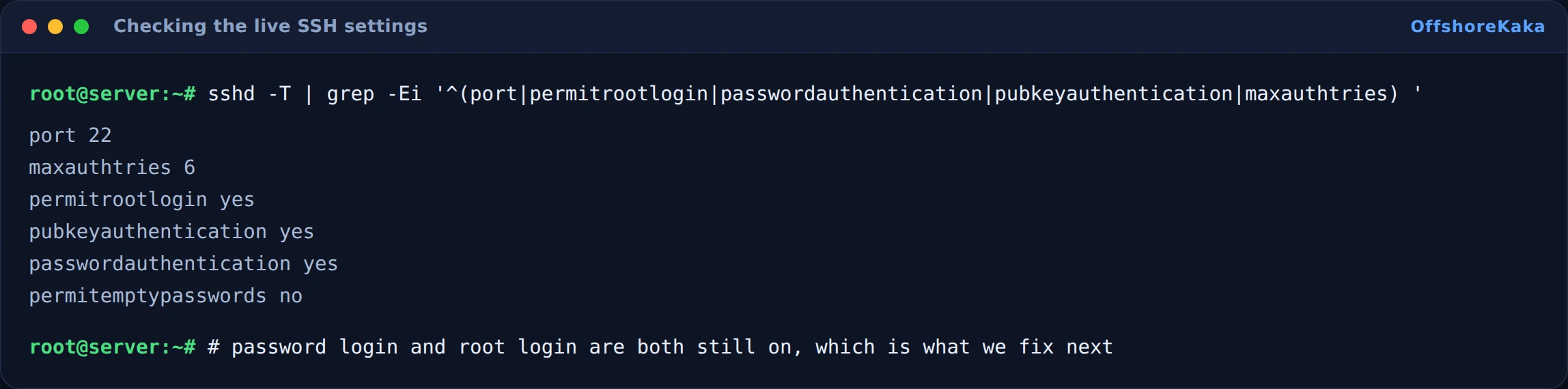
That is a default install, and it is what every scanner on the internet is hoping to find. Write these values down before you change them, so you know exactly what to put back if you need to.
Take a snapshot if your panel offers one. A snapshot takes a minute and turns a lockout from a bad afternoon into a two minute rollback.
The four steps
Step 1: Make a key pair on your own computer
The key pair has two halves. The private half stays on your laptop and never moves. The public half gets copied to the server. Run this on your computer, not on the VPS:
ssh-keygen -t ed25519 -C "laptop-to-vps"Press Enter to accept the default location. Use a passphrase if the laptop is ever out of your sight. Ed25519 is the right choice in 2026: the keys are short, they are fast, and they are supported everywhere. Only fall back to ssh-keygen -t rsa -b 4096 if you are dealing with something genuinely ancient.
Now push the public half up:
ssh-copy-id youruser@your-server-ipTest before moving on. Run ssh youruser@your-server-ip. If it logs you in without asking for a password, the key works. If it still asks for a password, stop here and fix that first. Everything after this step assumes key login is working.
Step 2: Turn off password login and root login
Open /etc/ssh/sshd_config and set these three lines. If a line is already there with a # in front of it, delete the # rather than adding a second copy lower down.
PasswordAuthentication no
PermitRootLogin no
PubkeyAuthentication yes
On Ubuntu 22.04 and newer, check /etc/ssh/sshd_config.d/ as well. Cloud images often drop a file in there that sets PasswordAuthentication yes, and because those files are read first, they win. This is the single most common reason people follow a hardening guide, restart SSH, and find passwords still work.
Step 3: Move SSH off port 22 (optional)
Changing the port does not make SSH stronger. What it does is drop the noise in your logs by roughly 95 percent, because the bulk of automated scanning only tries port 22. That alone makes real attacks easier to spot.
Port 2222Open the new port in the firewall before you restart SSH. Not after. If you restart first, the service moves to a port your firewall is dropping and you are locked out. Our firewall setup guide covers the rules in more detail.
Step 4: Restart and test in a second window
sshd -t && systemctl restart sshThe sshd -t part checks the config for syntax errors and only restarts if it passes. A typo in sshd_config stops the service from coming back up at all, and that is a lockout you cannot talk your way out of.
Now open a new terminal, leaving the first one connected, and log in there. Confirm the settings took:
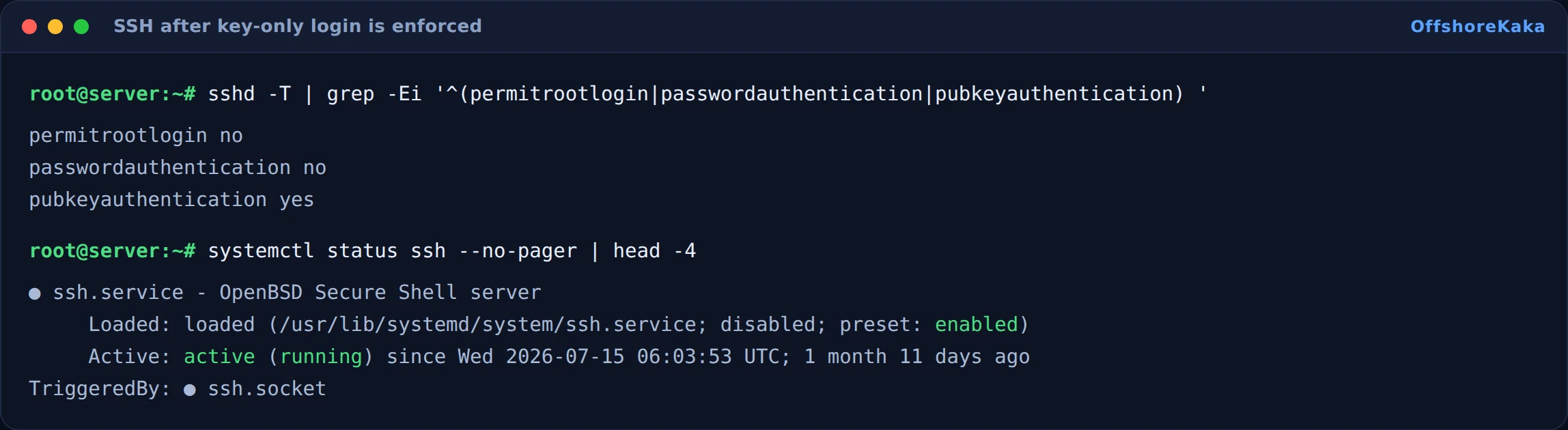
Only when that second login works should you close the first one.
Useful commands
Confirm the port SSH is really listening on
ss -tulpn | grep sshAllow the new port in UFW
ufw allow 2222/tcp
ufw reload
Read recent login attempts
tail -n 50 /var/log/auth.logOn AlmaLinux, Rocky and CentOS the file is /var/log/secure instead. Look for Accepted publickey lines, which are your own successful logins, and Failed password lines, which are the bots. After this guide the failed lines should stop appearing entirely, because passwords are no longer an option.
Fix key permissions when the key is refused
SSH ignores a key file that other users on the box can read. If your key is not being accepted and you are certain it is the right one, this is almost always why:
chmod 700 ~/.ssh
chmod 600 ~/.ssh/authorized_keys
If you get locked out
Every VPS panel worth using has a web console, sometimes called VNC or noVNC. It talks to the server the way a physical monitor and keyboard would, so it keeps working when SSH is dead. That is your way back in.
From the console, log in as root, set PasswordAuthentication yes again, restart SSH, and you are back where you started. If you changed the port and cannot connect, either reopen the old port in the firewall or set the port back to 22.
The thing that turns a small mistake into a big one is changing several things at once. Change one setting, restart, test, then move to the next.
How to test when you are done
- Log in from a new terminal using your key.
- Add
-p 2222if you changed the port. - Try
ssh root@your-server-ip. It should be refused. - Force a password attempt with
ssh -o PubkeyAuthentication=no youruser@your-server-ip. It should also be refused. - Run
sshd -T | grep -i passwordauthand confirm it readsno. - Check the auth log for clean
Accepted publickeylines.
When it does not work
| What you see | Why | Fix |
|---|---|---|
| Password login still works after the restart | A file in /etc/ssh/sshd_config.d/ is overriding your change |
Edit that file too, or delete the line from it, then restart |
| Key refused, password prompt appears | Wrong username, or permissions on ~/.ssh |
Check the username, then run the two chmod commands above |
| SSH does not come back after restart | Syntax error in the config | Use the panel console and run sshd -t to see the exact line number |
| Cannot connect after a port change | Firewall is still only allowing 22 | Allow the new port, then connect with -p |
Checklist
- Key pair created and the public key copied to the server.
- Key login tested and working before anything was disabled.
PasswordAuthentication noandPermitRootLogin noconfirmed withsshd -T./etc/ssh/sshd_config.d/checked for overrides.- Firewall updated if you moved the port.
- A second login tested before closing the first terminal.
Want a VPS with real root access?
OffshoreKaka VPS servers run on KVM in Amsterdam and Frankfurt, with a web console in the panel so a lockout is never permanent.
FAQ
Is changing the SSH port actually worth doing?
It is worth doing for the quiet logs, not for the security. Anyone running a real port scan will find SSH on 2222 in seconds. The value is that once the background noise is gone, a genuine attempt stands out instead of being buried under ten thousand bot logins.
Should I use fail2ban as well?
Yes, and it takes about two minutes. Once password login is off it has less to block, but it still handles the slow scanners that keep probing. There is more on it in our VPS security checklist.
What if I lose my private key?
Then you lose that route in, which is exactly the point of a key. Get in through the panel console, add a new public key to ~/.ssh/authorized_keys, and remove the old one. Keep a second key on a different machine if you would rather not rely on the console.
Does any of this help my Google ranking?
No, not on its own. It keeps the server up and out of trouble, and a site that is online and clean is easier to rank than one that keeps getting compromised. But the ranking itself comes from content and links.